> ## Documentation Index
> Fetch the complete documentation index at: https://docs.aion.to/llms.txt
> Use this file to discover all available pages before exploring further.
# Composer
> Arrange Ions into project graphs that implement one or more Aions.
Composer is Aion's visual workspace for arranging and configuring [Ions](/docs/concepts/ions).
Use Composer to create a Project, add [Deployment](/docs/concepts/deployment-ions),
[Behavior](/docs/concepts/behavior-ions), and [Distribution](/docs/concepts/distribution-ions) Ions, connect runtime
Ions into
[Sequences](/docs/concepts/ions#ions-and-sequences), and review the resulting configuration before syncing it to
the control plane.
## Composer, Projects, and Aions
These concepts describe different boundaries:
| Concept | What it represents |
| -------------------------- | ---------------------------------------------------------------------------------- |
| Composer | The editor used to build and configure project graphs. |
| Project | A workspace that stores Ions, their connections, and project-scoped configuration. |
| [Aion](/docs/what-is-aion) | An application rooted in one [Identity](/docs/concepts/identities). |
A Project is not an Aion. One Project can contain Ions serving several Aion identities, and one Aion can use
Distribution Ions and Sequences assembled in more than one Project.
```mermaid actions={false} theme={null}
flowchart LR
C[Composer] --> P[Project graph]
P --> D[Deployment Ion]
P --> B[Behavior Ion]
P --> R[Distribution Ion]
I[Aion Identity] -. principal .-> R
R --- N[Network]
```
## A Typical Composer Workflow
Changes remain pending in Composer until you sync them. Work through the graph in this order so you can review the
complete runtime flow before saving it.
### 1. Create or select a Project
On the Composer start screen, choose a Project under **Select Application**, then choose the Project environment you
want to edit under **Select Environment**. Use the `+` actions to create either one when needed, then select **Open**.
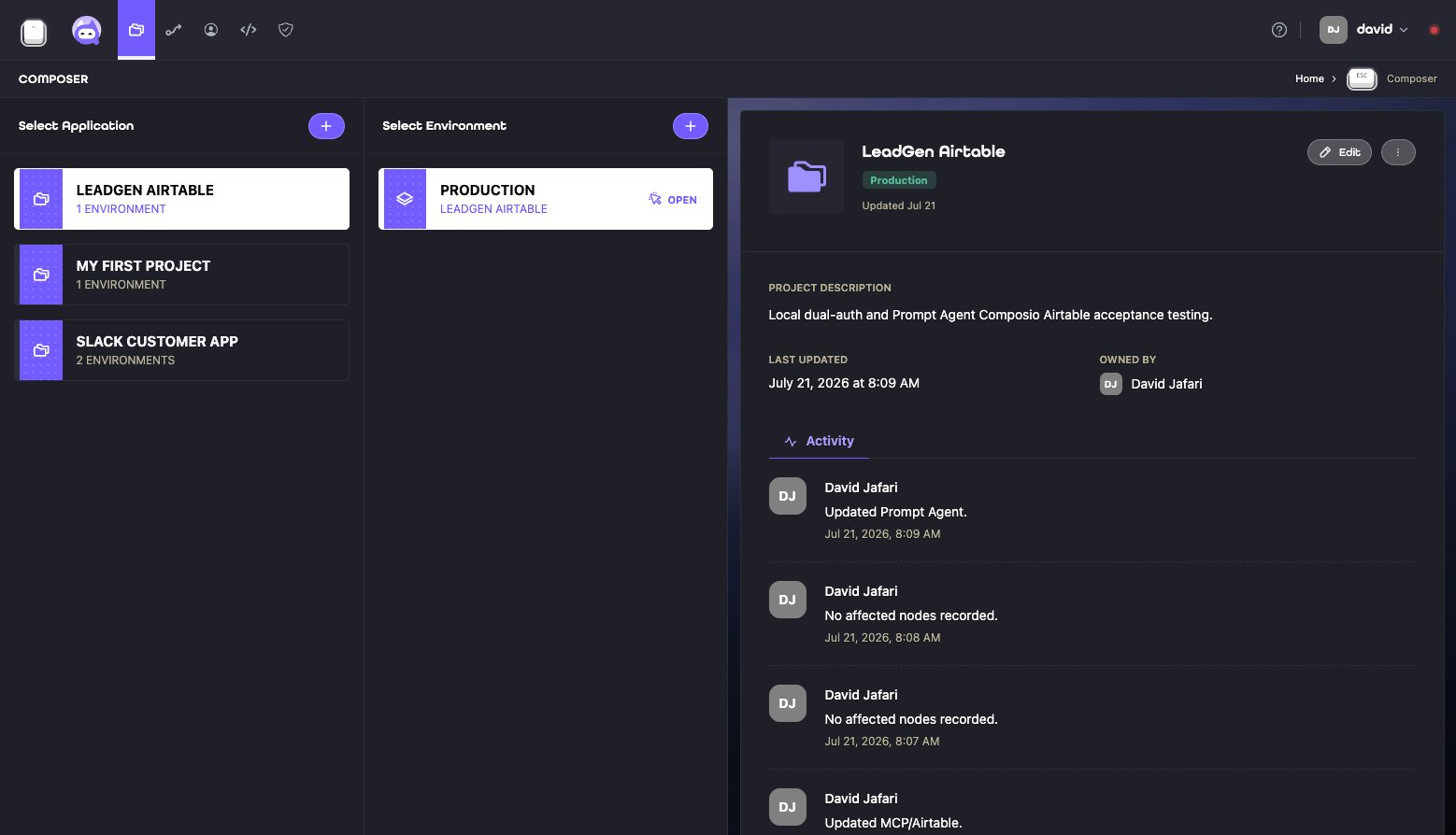 Each environment has its own graph configuration. Confirm the selected environment before editing, especially when a
Project has separate development, staging, and production environments. The details and activity panel helps you
verify that you have the intended Project.
### 2. Add Ions to the graph
Select **Add Node**, then choose the type of Ion you want to add:
* Add a [**Deployment Ion**](/docs/concepts/deployment-ions) to bring a runnable implementation into the Project.
* Add a [**Behavior Ion**](/docs/concepts/behavior-ions) to interpret, transform, route, or answer requests.
* Add a [**Distribution Ion**](/docs/concepts/distribution-ions) to receive requests from a network or endpoint.
Each environment has its own graph configuration. Confirm the selected environment before editing, especially when a
Project has separate development, staging, and production environments. The details and activity panel helps you
verify that you have the intended Project.
### 2. Add Ions to the graph
Select **Add Node**, then choose the type of Ion you want to add:
* Add a [**Deployment Ion**](/docs/concepts/deployment-ions) to bring a runnable implementation into the Project.
* Add a [**Behavior Ion**](/docs/concepts/behavior-ions) to interpret, transform, route, or answer requests.
* Add a [**Distribution Ion**](/docs/concepts/distribution-ions) to receive requests from a network or endpoint.
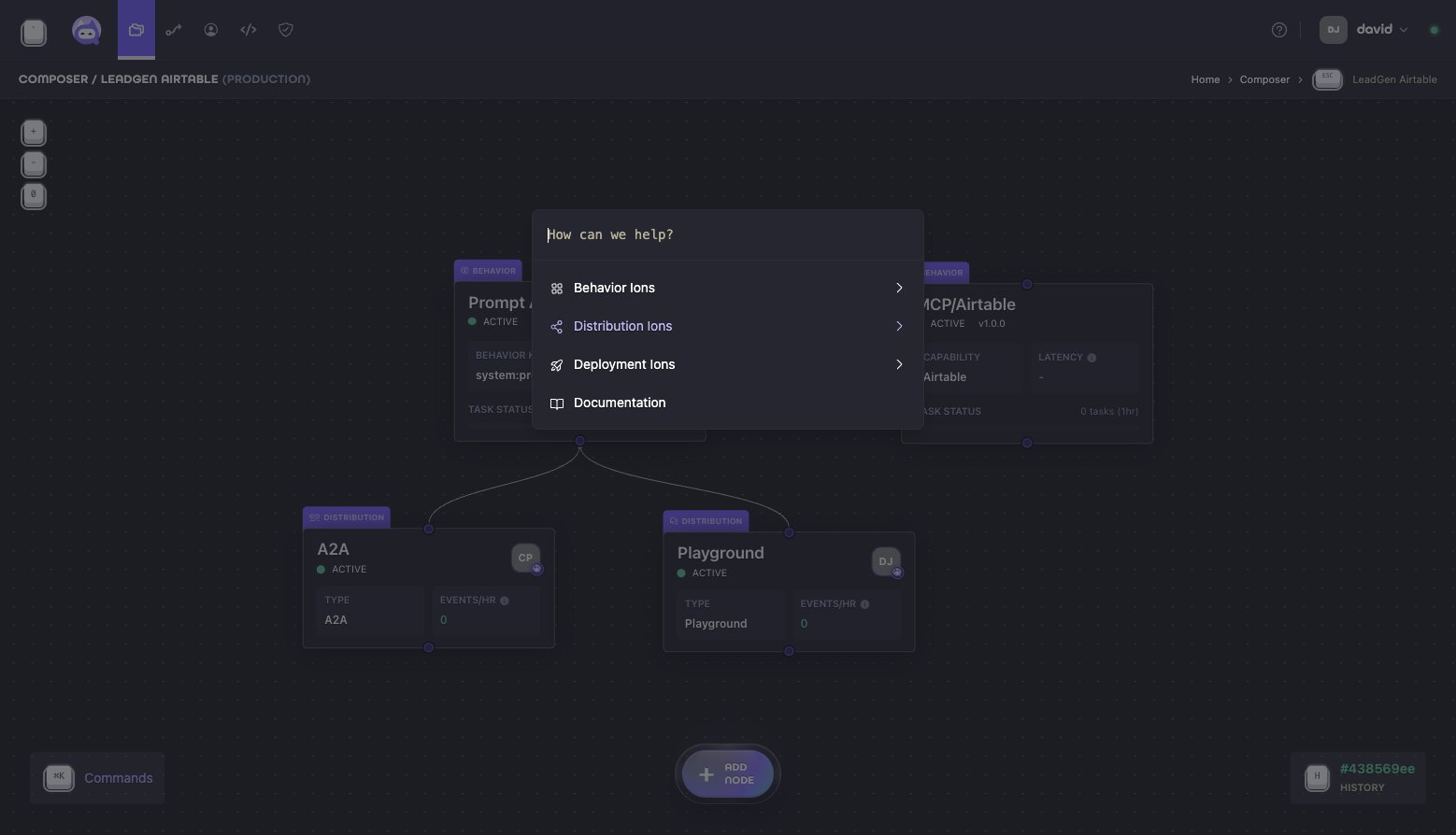 Add only the Ions needed for this Project. A Behavior Ion can be reused by more than one runtime flow, and an Aion can
exist as an address before behavior is attached.
### 3. Connect a Sequence
Connect a Distribution Ion to the Behavior Ions that should participate in its runtime flow. Those connections form a
[Sequence](/docs/concepts/ions#ions-and-sequences): the ordered list of Ions used when work enters through that
Distribution.
Add only the Ions needed for this Project. A Behavior Ion can be reused by more than one runtime flow, and an Aion can
exist as an address before behavior is attached.
### 3. Connect a Sequence
Connect a Distribution Ion to the Behavior Ions that should participate in its runtime flow. Those connections form a
[Sequence](/docs/concepts/ions#ions-and-sequences): the ordered list of Ions used when work enters through that
Distribution.
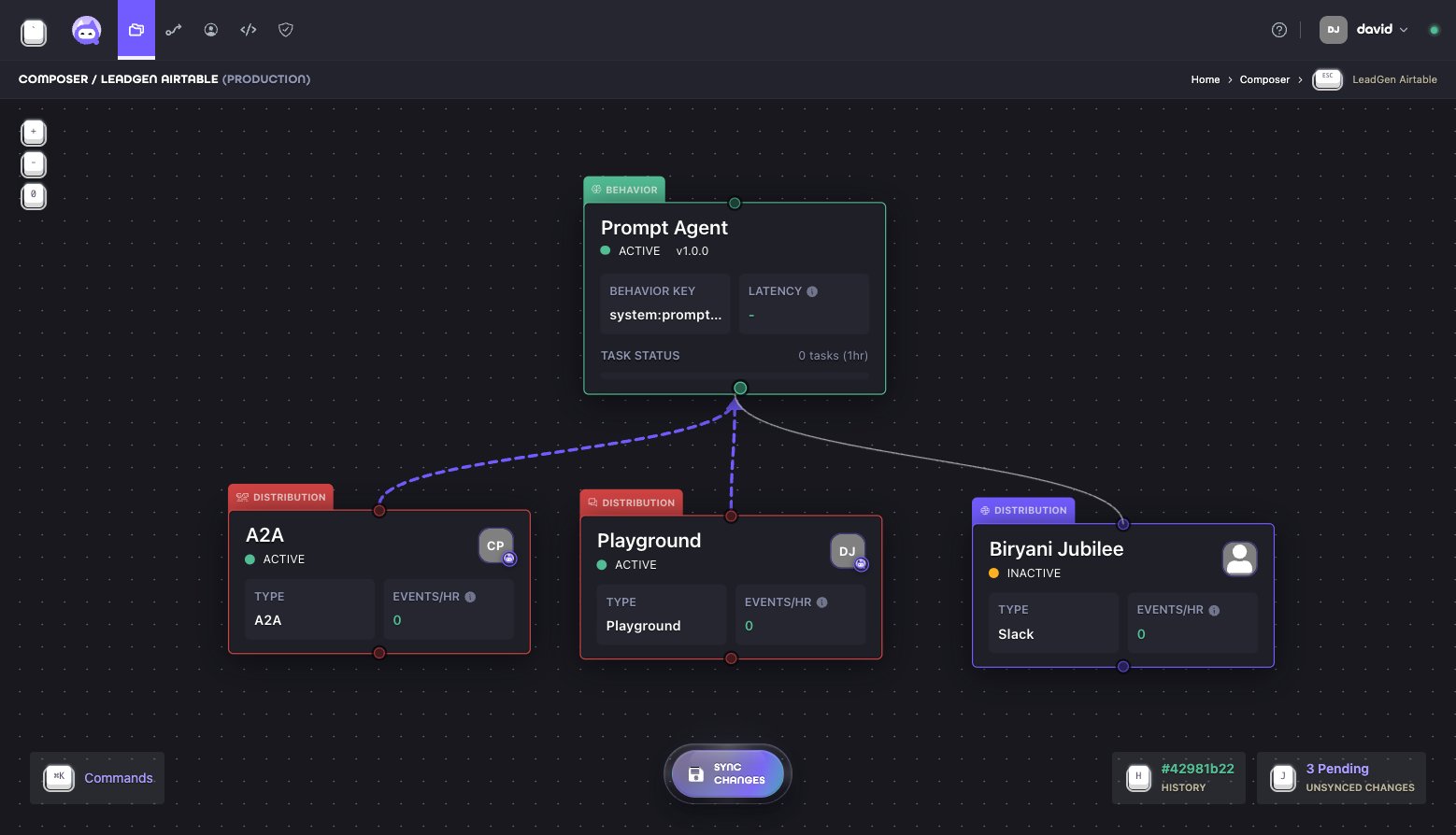 Each Distribution anchors its own Sequence. The same Behavior Ion can participate in several Sequences, so you can
reuse application logic across networks without duplicating it.
### 4. Configure each Ion
Select an Ion to open its details panel. The available tabs and fields depend on the Ion type. For example, a
Distribution Ion provides network settings and an **Identity** tab for the records used by that endpoint.
Each Distribution anchors its own Sequence. The same Behavior Ion can participate in several Sequences, so you can
reuse application logic across networks without duplicating it.
### 4. Configure each Ion
Select an Ion to open its details panel. The available tabs and fields depend on the Ion type. For example, a
Distribution Ion provides network settings and an **Identity** tab for the records used by that endpoint.
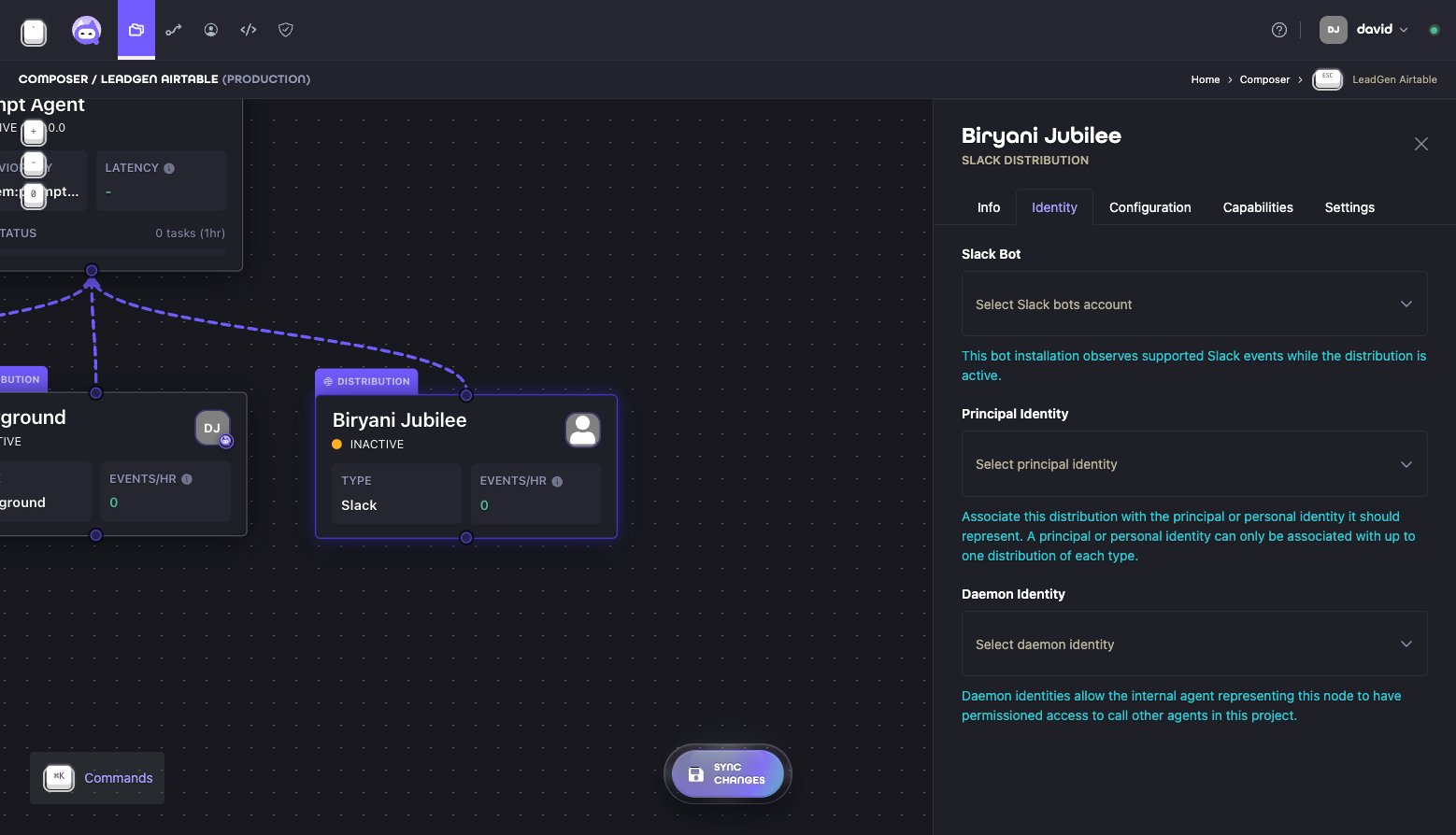 For a Distribution, use:
* the network account field, such as **Slack Bot**, to choose the external account that authenticates the endpoint
* **Principal Identity** to choose the [Aion Identity](/docs/concepts/identities#aion-identities) represented by the
Distribution
* **Daemon Identity** when the configured runtime needs a principal for internal calls, permissions, and usage
attribution
Review the other tabs for type-specific configuration, capabilities, and settings. Behavior and Deployment Ions
present the controls relevant to their roles.
### 5. Review and sync the Project
Before syncing, review the canvas, resolve any validation issues, and confirm that you are editing the intended
Project environment. Composer shows the number of pending edits beside **History** and above **Sync Changes**.
For a Distribution, use:
* the network account field, such as **Slack Bot**, to choose the external account that authenticates the endpoint
* **Principal Identity** to choose the [Aion Identity](/docs/concepts/identities#aion-identities) represented by the
Distribution
* **Daemon Identity** when the configured runtime needs a principal for internal calls, permissions, and usage
attribution
Review the other tabs for type-specific configuration, capabilities, and settings. Behavior and Deployment Ions
present the controls relevant to their roles.
### 5. Review and sync the Project
Before syncing, review the canvas, resolve any validation issues, and confirm that you are editing the intended
Project environment. Composer shows the number of pending edits beside **History** and above **Sync Changes**.
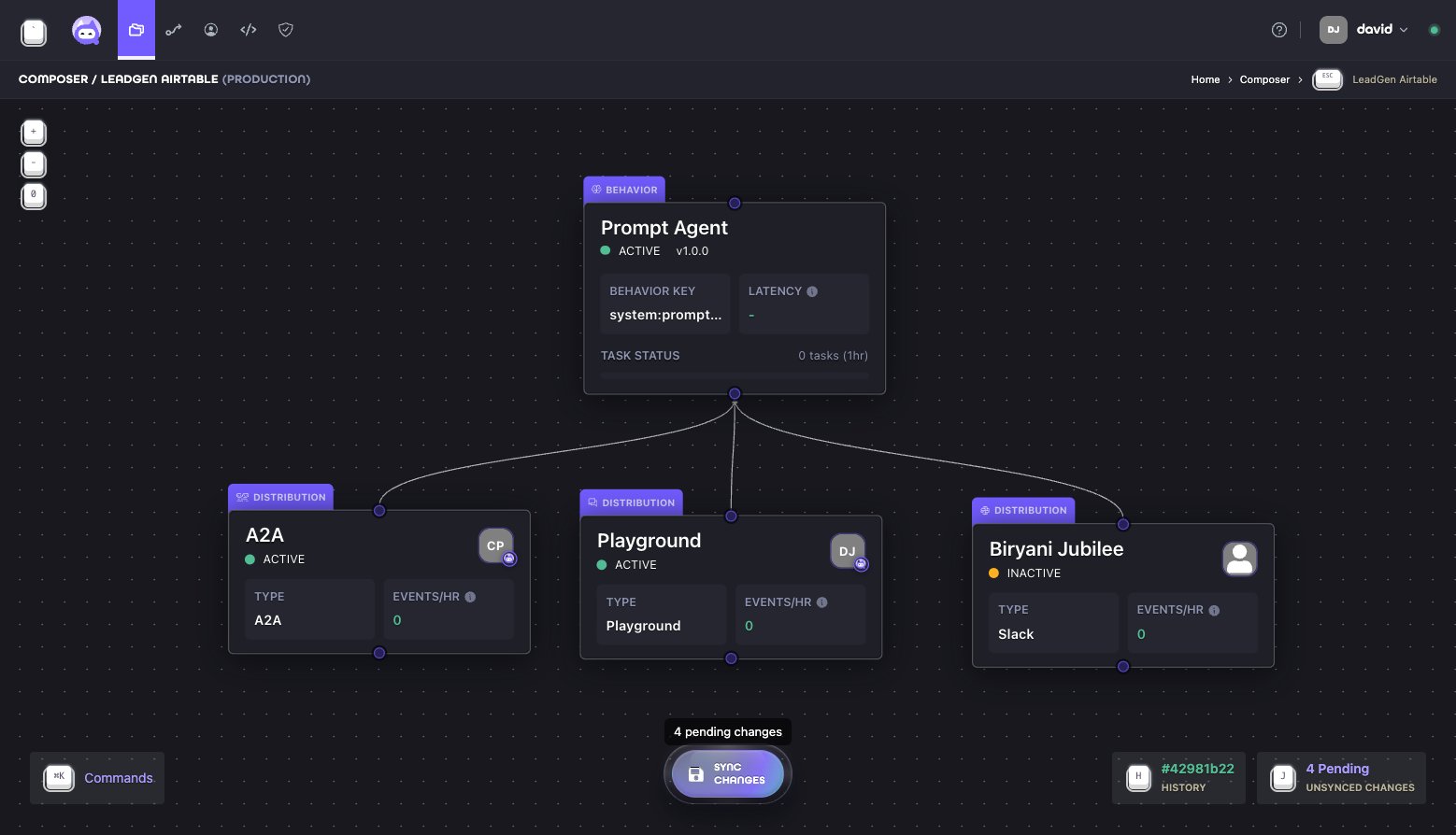 Open the pending changes list when you need to inspect the unsynced edits individually. When the graph and
configuration are correct, select **Sync Changes** to save the Project updates to the control plane.
## Continue
Follow [Build an Aion](/docs/usage/building-an-aion) for the task flow. Read
[Ions](/docs/concepts/ions) for the building-block model or [Identities](/docs/concepts/identities) for the Aion
boundary.
Open the pending changes list when you need to inspect the unsynced edits individually. When the graph and
configuration are correct, select **Sync Changes** to save the Project updates to the control plane.
## Continue
Follow [Build an Aion](/docs/usage/building-an-aion) for the task flow. Read
[Ions](/docs/concepts/ions) for the building-block model or [Identities](/docs/concepts/identities) for the Aion
boundary.