> ## Documentation Index
> Fetch the complete documentation index at: https://docs.aion.to/llms.txt
> Use this file to discover all available pages before exploring further.
# MCP Servers
> Find, authorize, connect to, and monitor MCP servers available through Aion.
The **MCP Servers** catalog brings the tool servers available through Aion into one place. Open
**Resources > MCP Servers** to find servers from your Projects, manage eligible global servers, inspect their tools,
copy connection examples, and review usage.
Project servers come from MCP capabilities configured on [Ions](/docs/concepts/ions) in
[Composer](/docs/composer). Global servers are Aion-managed capabilities that can be available across an
organization.
## Before you begin
You need:
* an active Aion organization;
* a visible Project with an MCP-capable Ion, or an eligible global MCP server;
* the permissions required by the server you want to use.
## Browse MCP servers
### Choose Project or Global
The catalog separates servers by where they are available:
| View | What it contains | What you can change here |
| ------- | ------------------------------------------------------------ | ----------------------------------- |
| Project | MCP servers configured through Ions in one or more Projects. | Browse, inspect, and connect. |
| Global | Aion-provided MCP servers available across the organization. | Enable or disable eligible servers. |
Project MCP configuration remains read-only on this page. To change which tools are allowed or blocked, edit the
Ion's MCP capability configuration in [Composer](/docs/composer).
### Find a Project MCP server
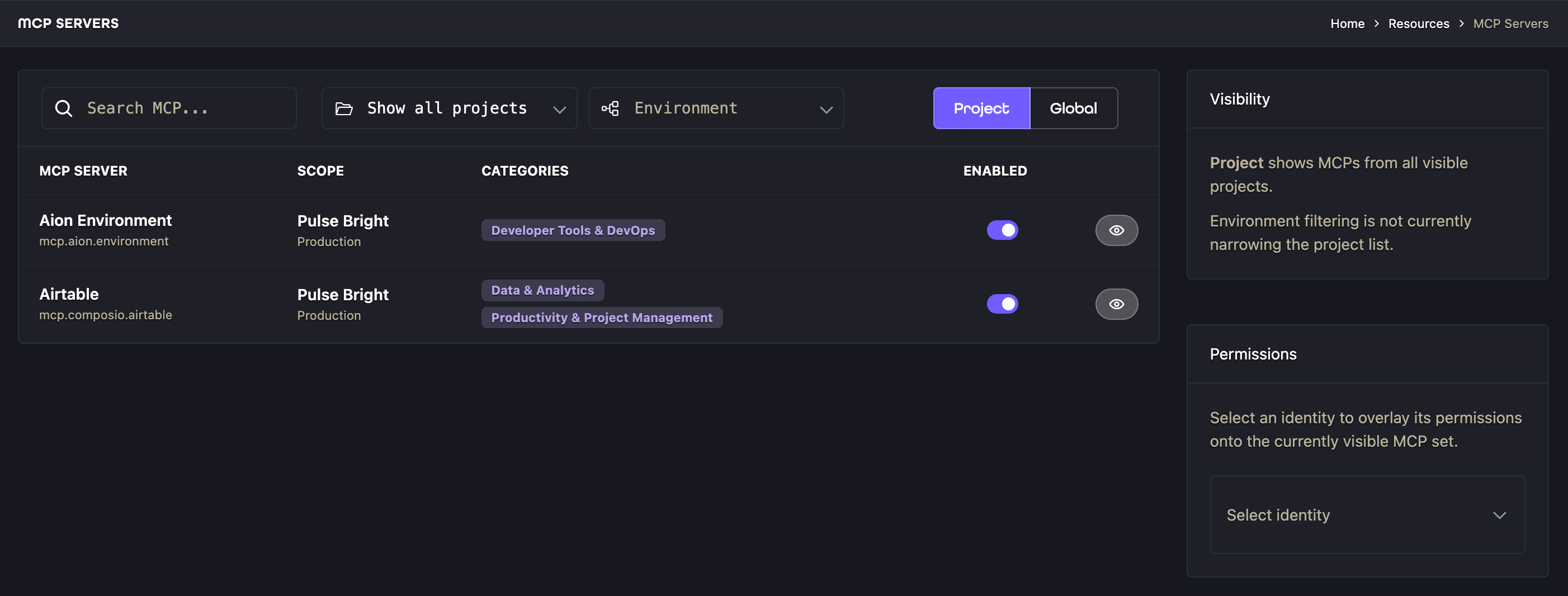
1. Open **Resources > MCP Servers**. The **Project** tab opens by default.
2. Choose a **Project**, or select **Show all projects**.
3. Optionally choose an **Environment**, or select **Show all environments**.
4. Use **Search MCP...** to filter the visible servers.
5. Select **View MCP server** to open a server's details.
The Project tab starts empty until you select a Project or **Show all projects**. Each result identifies its Project,
environment, categories, required permissions, and current availability. A server may be **Available**,
**Review Required**, or **Unavailable**.
Use **Environment** to narrow the Project results to Projects with that environment name.
 ### Preview permissions for an Identity
Select a Personal, Principal, or Daemon [Identity](/docs/concepts/identities) in the **Permissions** card to preview
whether its assigned roles include the permissions listed by each server. This preview does not grant access or
execute a request. It highlights missing permissions and moves closer matches higher in the results.
During organization-wide discovery, Aion defaults to the caller's Project environment name. For example, a runtime
in a `Production` environment automatically discovers organization-shared servers from other `Production` Projects,
not from `Development` Projects. Clients that support explicit environment selection can search another environment
when the Identity's role otherwise permits it.
See [Roles & Permissions](/docs/concepts/roles-and-permissions) for how assigned roles, Project context, and
environment matching affect access.
### Enable a global MCP server
1. Open the **Global** tab.
2. Find the MCP server you want to use.
3. Turn on **Enabled**.
4. Wait for confirmation that the server is enabled.
Some global servers are always enabled and show a locked switch. Servers that are not eligible for the current
organization cannot be enabled. Project and Environment filters do not affect the Global list.
## Authentication
Choose credentials based on where the MCP client runs:
| Caller | Credential | How it is provided |
| -------------------------- | ----------------------------------------- | ------------------------------------------------------ |
| Codex or Claude Code | OAuth or personal API key | Sign in interactively, or configure `AION_API_KEY`. |
| Script or non-OAuth client | Personal API key | Send the key as an `Authorization: Bearer` credential. |
| Remote Deployment | `AION_CLIENT_ID` and `AION_CLIENT_SECRET` | Copy the values Aion displays once. |
| GitHub Deployment | `AION_CLIENT_ID` and `AION_CLIENT_SECRET` | Aion injects the values into the runtime. |
### OAuth for interactive clients
Use OAuth with interactive MCP clients such as Codex and Claude Code. Each Aion MCP endpoint publishes the
authorization information the client needs. After you add the server, the client opens Aion sign-in and uses the
resulting authorization when it connects.
OAuth acts as the signed-in user. The servers and tools available to the client are limited by that user's
organization membership, visibility, and permissions.
### Personal API keys
Use a personal API key when a user-operated client cannot complete OAuth or when you need non-interactive access.
Create and revoke keys from **Settings > Personal > API Keys**, then export the key without putting its value in a
client configuration:
```bash theme={null}
export AION_API_KEY="YOUR_PERSONAL_API_KEY"
```
Copy the exact MCP URL from the selected server's **Usage** tab. For Codex, configure the environment variable as
the bearer-token source:
```toml theme={null}
# ~/.codex/config.toml
[mcp_servers.my-aion-server]
url = "PASTE_MCP_URL_HERE"
bearer_token_env_var = "AION_API_KEY"
```
For Claude Code, add the server to `.mcp.json` and expand the environment variable in the request header:
```json theme={null}
{
"mcpServers": {
"my-aion-server": {
"type": "http",
"url": "PASTE_MCP_URL_HERE",
"headers": {
"Authorization": "Bearer ${AION_API_KEY}"
}
}
}
}
```
Personal keys act as their users. They remain scoped to the organization selected when created and require the
user's current membership, server visibility, and MCP execution permissions. Revoke an exposed or unused key from
the [API Keys](/docs/other/api-keys) page. New requests stop authenticating after the revocation has propagated.
### Deployment client credentials
Aion deployments use `AION_CLIENT_ID` and `AION_CLIENT_SECRET`:
* **Remote Deployment:** Aion displays both values after you create the deployment. Copy them immediately and add
them to the runtime's environment. The client secret is shown only once and cannot be retrieved later.
* **GitHub Deployment:** Aion injects both values into the hosted runtime environment automatically.
The Aion SDK reads these variables, exchanges them for a short-lived Aion token, and refreshes the token as needed.
SDK MCP adapters use that token automatically; do not send the raw client ID or secret to an MCP endpoint.
### Permissions and attribution
OAuth and personal API-key connections are authorized as their users. A deployment connection uses the runtime's
[Daemon Identity](/docs/concepts/identities#daemon-identities) or the explicit principal selector supplied by the SDK
example.
Use the selected server's **Required Permissions** list as the source of truth. MetaTools uses the same authentication
paths and applies the caller's visibility and permissions when it searches for or executes tools.
Usage is attributed to the user or Identity that authorized the request.
## Usage
Open **Resources > MCP Servers**, select a server, and open **Usage**. The page generates the exact endpoint and
capability reference for the selected server.
### Choose an access pattern
| Pattern | Use it when |
| ------------- | -------------------------------------------------------------------------------------------------------- |
| Direct server | Your client should load and call one server's tools directly. |
| MetaTools | Your application should search and execute across visible servers without loading every tool definition. |
**Direct server** examples target the selected server. **MetaTools** examples target Aion's global MetaTools server
and use `aion_tool_search` and `aion_tool_execute` to find and call eligible tools.
### Choose a client
| Client | Use it for | Authentication |
| ----------- | ------------------------------------------------------ | ----------------------------- |
| Codex | Adding one remote MCP server to Codex. | OAuth or personal API key |
| Claude Code | Adding one streamable HTTP server to Claude Code. | OAuth or personal API key |
| Python SDK | Connecting an application to one capability reference. | Deployment client credentials |
| LangGraph | Loading MCP tools into a LangGraph application. | Deployment client credentials |
| Google ADK | Attaching an MCP toolset to a Google ADK agent. | Deployment client credentials |
### Connect an OAuth client
Copy the generated MCP URL into your client configuration. For Codex, the generated example follows this shape:
```toml theme={null}
# ~/.codex/config.toml
[mcp_servers.my-aion-server]
url = "PASTE_MCP_URL_HERE"
auth = "oauth"
# Then authenticate once:
# codex mcp login my-aion-server
```
Complete Aion sign-in when the client prompts you. The connection succeeds when the client can list the server's
tools. If the server connects but a tool is unavailable, review the server's required permissions and tool policy.
For Claude Code, copy the generated command:
```bash theme={null}
claude mcp add --transport http my-aion-server "PASTE_MCP_URL_HERE"
```
Use `/mcp` inside Claude Code to complete authentication.
### Connect an Aion deployment
Choose **SDK**, **SDK / LangGraph**, or **SDK / Google ADK**, then copy the generated example. It includes:
* the exact capability reference for the selected server;
* an authenticated MCP endpoint;
* the runtime context or principal selector used for authorization.
The example uses the deployment credentials described above. Keep its generated capability reference intact because
the required subject and capability key depend on how the server is attached to the Project.
## Inspect tools
Open a server to review its summary and tools:
| Area | What it shows |
| ------- | ------------------------------------------------------------------------------------------- |
| Summary | Owner, capability key, MCP path, Project, environment, protocols, and required permissions. |
| Tools | Discovered tools, categories, policy status, review state, and discovery health. |
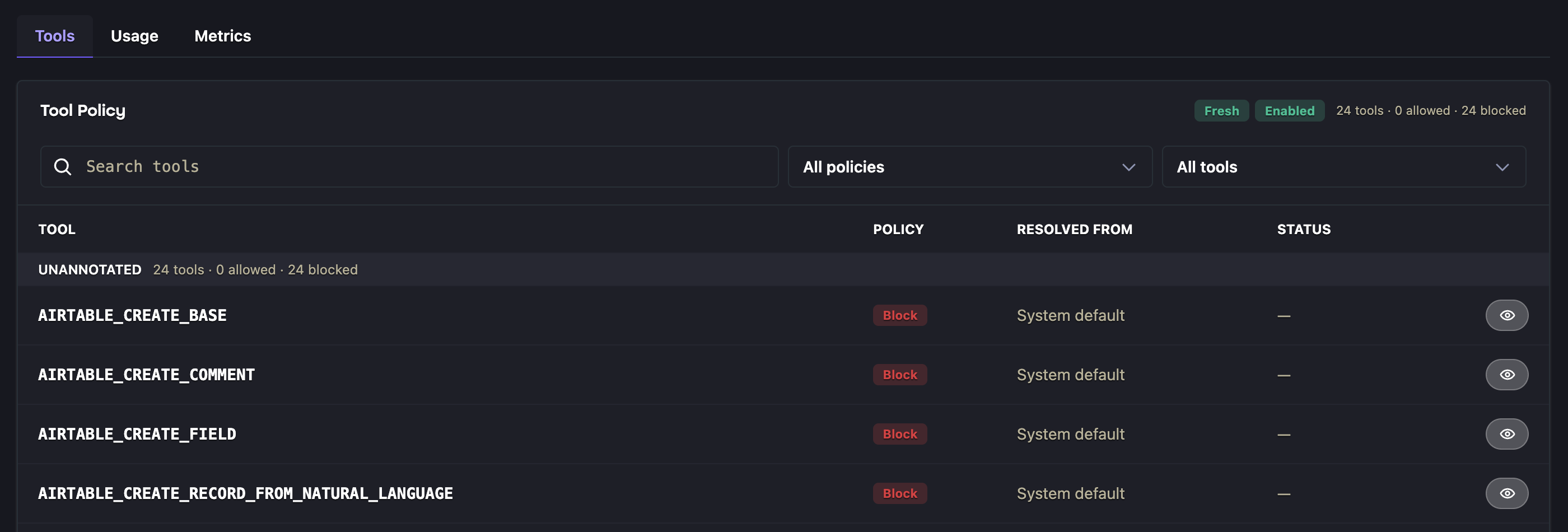
The **Tools** tab groups tools as read-only, mutating, destructive, or unannotated. Its policy controls are
informational; edit tool policy from the corresponding Ion in Composer.
This example shows an Airtable server whose unannotated tools resolve to **Block** under the system default:
### Preview permissions for an Identity
Select a Personal, Principal, or Daemon [Identity](/docs/concepts/identities) in the **Permissions** card to preview
whether its assigned roles include the permissions listed by each server. This preview does not grant access or
execute a request. It highlights missing permissions and moves closer matches higher in the results.
During organization-wide discovery, Aion defaults to the caller's Project environment name. For example, a runtime
in a `Production` environment automatically discovers organization-shared servers from other `Production` Projects,
not from `Development` Projects. Clients that support explicit environment selection can search another environment
when the Identity's role otherwise permits it.
See [Roles & Permissions](/docs/concepts/roles-and-permissions) for how assigned roles, Project context, and
environment matching affect access.
### Enable a global MCP server
1. Open the **Global** tab.
2. Find the MCP server you want to use.
3. Turn on **Enabled**.
4. Wait for confirmation that the server is enabled.
Some global servers are always enabled and show a locked switch. Servers that are not eligible for the current
organization cannot be enabled. Project and Environment filters do not affect the Global list.
## Authentication
Choose credentials based on where the MCP client runs:
| Caller | Credential | How it is provided |
| -------------------------- | ----------------------------------------- | ------------------------------------------------------ |
| Codex or Claude Code | OAuth or personal API key | Sign in interactively, or configure `AION_API_KEY`. |
| Script or non-OAuth client | Personal API key | Send the key as an `Authorization: Bearer` credential. |
| Remote Deployment | `AION_CLIENT_ID` and `AION_CLIENT_SECRET` | Copy the values Aion displays once. |
| GitHub Deployment | `AION_CLIENT_ID` and `AION_CLIENT_SECRET` | Aion injects the values into the runtime. |
### OAuth for interactive clients
Use OAuth with interactive MCP clients such as Codex and Claude Code. Each Aion MCP endpoint publishes the
authorization information the client needs. After you add the server, the client opens Aion sign-in and uses the
resulting authorization when it connects.
OAuth acts as the signed-in user. The servers and tools available to the client are limited by that user's
organization membership, visibility, and permissions.
### Personal API keys
Use a personal API key when a user-operated client cannot complete OAuth or when you need non-interactive access.
Create and revoke keys from **Settings > Personal > API Keys**, then export the key without putting its value in a
client configuration:
```bash theme={null}
export AION_API_KEY="YOUR_PERSONAL_API_KEY"
```
Copy the exact MCP URL from the selected server's **Usage** tab. For Codex, configure the environment variable as
the bearer-token source:
```toml theme={null}
# ~/.codex/config.toml
[mcp_servers.my-aion-server]
url = "PASTE_MCP_URL_HERE"
bearer_token_env_var = "AION_API_KEY"
```
For Claude Code, add the server to `.mcp.json` and expand the environment variable in the request header:
```json theme={null}
{
"mcpServers": {
"my-aion-server": {
"type": "http",
"url": "PASTE_MCP_URL_HERE",
"headers": {
"Authorization": "Bearer ${AION_API_KEY}"
}
}
}
}
```
Personal keys act as their users. They remain scoped to the organization selected when created and require the
user's current membership, server visibility, and MCP execution permissions. Revoke an exposed or unused key from
the [API Keys](/docs/other/api-keys) page. New requests stop authenticating after the revocation has propagated.
### Deployment client credentials
Aion deployments use `AION_CLIENT_ID` and `AION_CLIENT_SECRET`:
* **Remote Deployment:** Aion displays both values after you create the deployment. Copy them immediately and add
them to the runtime's environment. The client secret is shown only once and cannot be retrieved later.
* **GitHub Deployment:** Aion injects both values into the hosted runtime environment automatically.
The Aion SDK reads these variables, exchanges them for a short-lived Aion token, and refreshes the token as needed.
SDK MCP adapters use that token automatically; do not send the raw client ID or secret to an MCP endpoint.
### Permissions and attribution
OAuth and personal API-key connections are authorized as their users. A deployment connection uses the runtime's
[Daemon Identity](/docs/concepts/identities#daemon-identities) or the explicit principal selector supplied by the SDK
example.
Use the selected server's **Required Permissions** list as the source of truth. MetaTools uses the same authentication
paths and applies the caller's visibility and permissions when it searches for or executes tools.
Usage is attributed to the user or Identity that authorized the request.
## Usage
Open **Resources > MCP Servers**, select a server, and open **Usage**. The page generates the exact endpoint and
capability reference for the selected server.
### Choose an access pattern
| Pattern | Use it when |
| ------------- | -------------------------------------------------------------------------------------------------------- |
| Direct server | Your client should load and call one server's tools directly. |
| MetaTools | Your application should search and execute across visible servers without loading every tool definition. |
**Direct server** examples target the selected server. **MetaTools** examples target Aion's global MetaTools server
and use `aion_tool_search` and `aion_tool_execute` to find and call eligible tools.
### Choose a client
| Client | Use it for | Authentication |
| ----------- | ------------------------------------------------------ | ----------------------------- |
| Codex | Adding one remote MCP server to Codex. | OAuth or personal API key |
| Claude Code | Adding one streamable HTTP server to Claude Code. | OAuth or personal API key |
| Python SDK | Connecting an application to one capability reference. | Deployment client credentials |
| LangGraph | Loading MCP tools into a LangGraph application. | Deployment client credentials |
| Google ADK | Attaching an MCP toolset to a Google ADK agent. | Deployment client credentials |
### Connect an OAuth client
Copy the generated MCP URL into your client configuration. For Codex, the generated example follows this shape:
```toml theme={null}
# ~/.codex/config.toml
[mcp_servers.my-aion-server]
url = "PASTE_MCP_URL_HERE"
auth = "oauth"
# Then authenticate once:
# codex mcp login my-aion-server
```
Complete Aion sign-in when the client prompts you. The connection succeeds when the client can list the server's
tools. If the server connects but a tool is unavailable, review the server's required permissions and tool policy.
For Claude Code, copy the generated command:
```bash theme={null}
claude mcp add --transport http my-aion-server "PASTE_MCP_URL_HERE"
```
Use `/mcp` inside Claude Code to complete authentication.
### Connect an Aion deployment
Choose **SDK**, **SDK / LangGraph**, or **SDK / Google ADK**, then copy the generated example. It includes:
* the exact capability reference for the selected server;
* an authenticated MCP endpoint;
* the runtime context or principal selector used for authorization.
The example uses the deployment credentials described above. Keep its generated capability reference intact because
the required subject and capability key depend on how the server is attached to the Project.
## Inspect tools
Open a server to review its summary and tools:
| Area | What it shows |
| ------- | ------------------------------------------------------------------------------------------- |
| Summary | Owner, capability key, MCP path, Project, environment, protocols, and required permissions. |
| Tools | Discovered tools, categories, policy status, review state, and discovery health. |
The **Tools** tab groups tools as read-only, mutating, destructive, or unannotated. Its policy controls are
informational; edit tool policy from the corresponding Ion in Composer.
This example shows an Airtable server whose unannotated tools resolve to **Block** under the system default:
 ## Monitor usage and cost
Open a server and select **Metrics** to inspect **Credits Used**, **Principal Attribution**, and usage categories.
Use the reporting-period control to change the time range.
## Troubleshoot a connection
| Symptom | What to check |
| ---------------------------------------- | ------------------------------------------------------------------------------ |
| The client never opens Aion sign-in. | Confirm that the client is configured for OAuth and uses the generated URL. |
| The client rejects its credentials. | Sign in, confirm `AION_API_KEY` is exported, or verify deployment credentials. |
| No Project servers appear. | Select a Project or **Show all projects**, then check the Environment filter. |
| A server needs review or is unavailable. | Inspect its missing permissions, availability details, and environment. |
| A tool is unavailable after connecting. | Review its policy in Composer and the caller's required permissions. |
## What to do next
* Follow the [LangGraph MCP guide](/sdk/langgraph/guides/mcp) to load MCP tools in a LangGraph application.
* Follow the [Google ADK MCP guide](/sdk/google-adk/guides/mcp) to use MCP tools with an ADK agent.
* Review the [Python MCP package](/sdk/python/packages/aion-mcp) for lower-level client integration.
* Read [Identities](/docs/concepts/identities) and
[Roles & Permissions](/docs/concepts/roles-and-permissions) for access and visibility rules.
## Monitor usage and cost
Open a server and select **Metrics** to inspect **Credits Used**, **Principal Attribution**, and usage categories.
Use the reporting-period control to change the time range.
## Troubleshoot a connection
| Symptom | What to check |
| ---------------------------------------- | ------------------------------------------------------------------------------ |
| The client never opens Aion sign-in. | Confirm that the client is configured for OAuth and uses the generated URL. |
| The client rejects its credentials. | Sign in, confirm `AION_API_KEY` is exported, or verify deployment credentials. |
| No Project servers appear. | Select a Project or **Show all projects**, then check the Environment filter. |
| A server needs review or is unavailable. | Inspect its missing permissions, availability details, and environment. |
| A tool is unavailable after connecting. | Review its policy in Composer and the caller's required permissions. |
## What to do next
* Follow the [LangGraph MCP guide](/sdk/langgraph/guides/mcp) to load MCP tools in a LangGraph application.
* Follow the [Google ADK MCP guide](/sdk/google-adk/guides/mcp) to use MCP tools with an ADK agent.
* Review the [Python MCP package](/sdk/python/packages/aion-mcp) for lower-level client integration.
* Read [Identities](/docs/concepts/identities) and
[Roles & Permissions](/docs/concepts/roles-and-permissions) for access and visibility rules.